
Add the DONATE portal to your phone
Your DONATE portal already works like an app. Open it once in your browser, add it to your home screen, and it opens full screen from an icon like anything else on your phone, with no app store, no download and nothing to set up inside the portal itself.
Adding it also unlocks the useful part: a quiet notification when donations land, so you can watch an appeal or an event night without sitting on the dashboard refreshing.
Open portal.easydonate.org and log in as usual, then follow the section for your device.
iPhone and iPad
- Open the portal in Safari. This only works in Safari, not Chrome or Firefox on iOS.
- Tap the three dots at the bottom right, next to the address bar.
- In the popup, tap Share, the square with an arrow coming out of it.
- Scroll down the share sheet and tap Add to Home Screen.
- Check the name, which will say DONATE Portal, and tap Add.
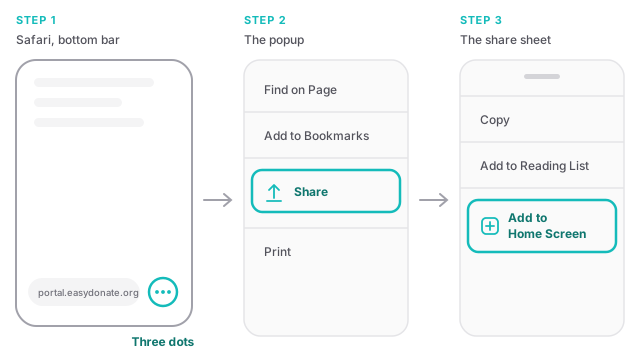
On older iPhones, where Safari puts its buttons in a toolbar along the bottom, there are no three dots: tap the same Share icon directly, then carry on from step 4.
The icon appears on your home screen. Open the portal from that icon from now on, not from Safari, because notifications on iPhone only work in the home screen version.
Android
- Open the portal in Chrome.
- Tap the three dots menu, top right.
- Tap Install app (some versions say Add to Home screen), then confirm.
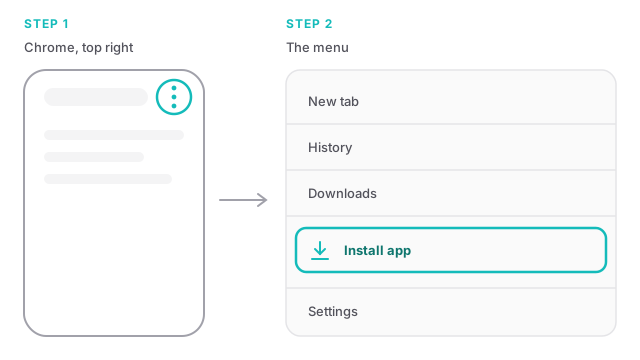
Chrome may also offer to install the portal on its own, with a small banner at the bottom of the screen. Either route gives you the same icon.
Desktop
- Open the portal in Chrome or Edge.
- Look for the install icon at the right hand end of the address bar, a small screen with a downward arrow.
- Click it, then click Install.
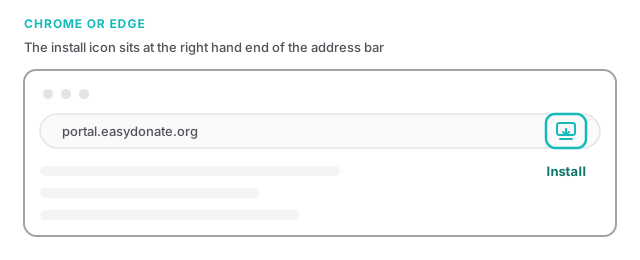
The portal opens in its own window, without browser tabs, and you can pin it to your taskbar or dock. There is no separate desktop download: this is the same portal in a tidier window.
Turn on notifications
Notifications are off until you ask for them, and you switch them on per device, so your phone and your laptop are separate decisions.
- Open the portal and go to your profile.
- Under Notifications, turn on Receive notifications on this device.
- Your browser will ask for permission. Choose Allow.
- Use Send test to check it works, and pick which alerts you want below the switch.
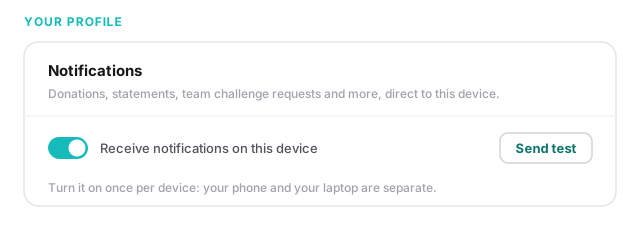
If you skipped the permission prompt or blocked it by accident, the switch cannot turn itself back on. Clear the notification permission for the site in your browser settings, then try again.
What you will actually receive
Donation alerts are batched, not one per donation. At most once every fifteen minutes, you get a single summary, so a busy appeal reads:
23 new donations £412.50 including Gift Aid
Tap it and the portal opens on your donations. A quiet fifteen minutes means no notification at all, and a single donation still reads as one.
On iPhone, this only works once the portal is on your home screen. Apple does not allow notifications for a site you have only bookmarked or left open in Safari, so if you turned the switch on in Safari and nothing arrives, add the portal to your home screen, open it from the icon and turn the switch on again there.
Why no app store
The portal is a modern web app. It ships with the details a browser needs to treat it as an installable app, which is why it installs under the name DONATE Portal with its own icon, works full screen, and keeps working when you open it from the icon.
Because it is the same portal either way, there is nothing to build, enable or configure on your side. Anyone on your team can add it to their own phone, and each person controls their own notifications.